


.avif)
.avif)
.avif)

iPhone Text Effects: Tips and Tricks
September 21, 2026

Phones

If you’re anything like me, you’re prone to aimless scrolling, browsing, and streaming on your phone when you should be doing something else. Like sleeping.
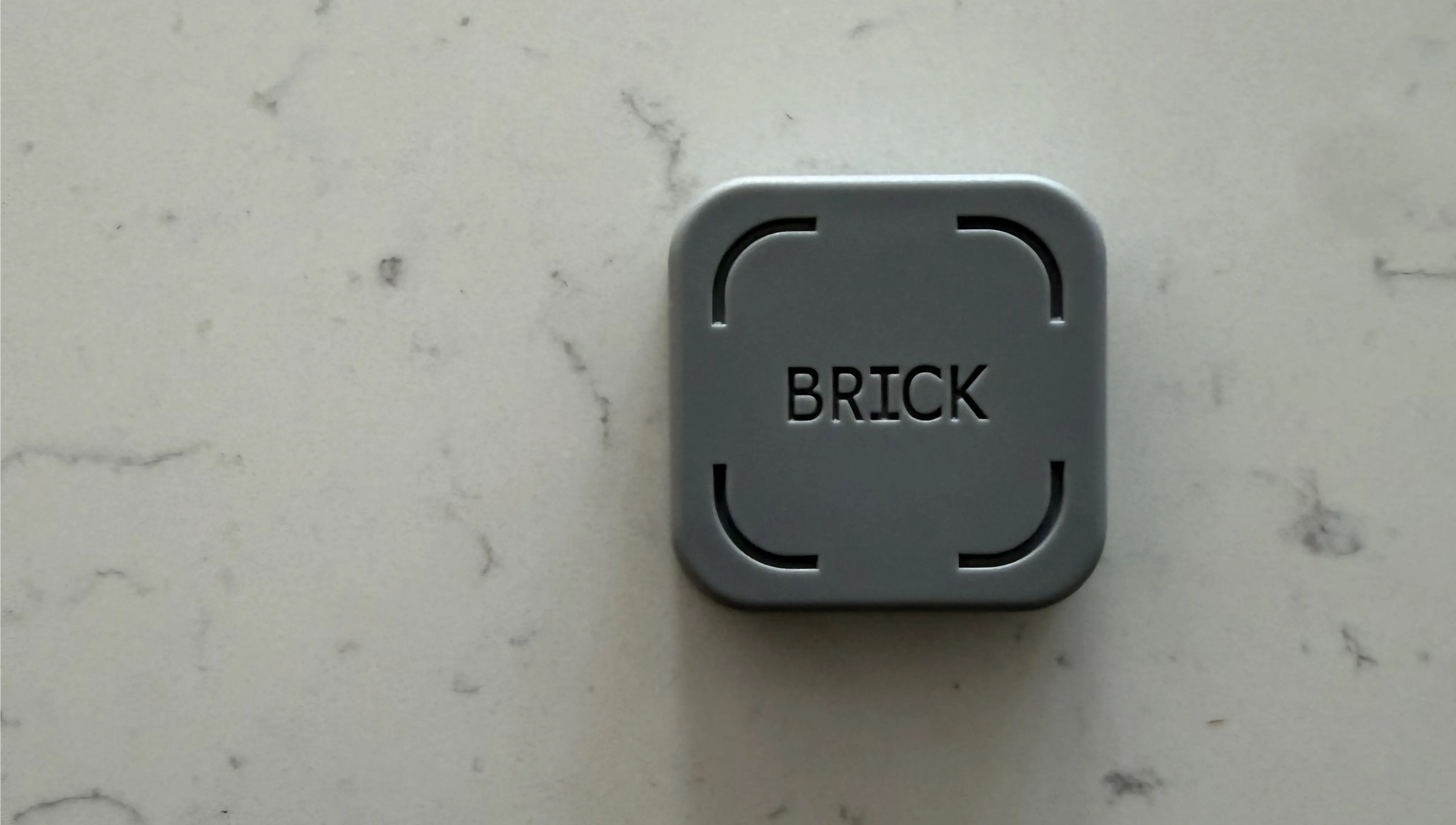
Enter Brick, a relatively new product designed to get you off of your phone and on to doing more important things. Smartphone productivity tools like this have been around for almost as long as smartphones themselves, but Brick is a little different.
First, it’s not just an app—it’s also a physical device. Second, it doesn’t require a subscription, which is what ultimately put me off some of its predecessors.
I’ve been using Brick for about a month with my iPhone 17 Pro, and have a lot of thoughts about it. What follows is my hands-on review of the tool.
{{brick}}
Brick is a digital wellness tool that helps you spend less time on your phone by blocking distracting apps and notifications until you're ready to use them again. It’s designed to make it harder to fall into the habit of endlessly scrolling social media, checking messages, or opening other distracting apps.
Brick works across Android and iOS devices, the requirements being Android 12 or later, and iOS 16.2 or later.
Brick can also be used for multiple devices, so you can, for example, Brick (I’m using that word as a verb here) your personal phone and work phone at the same time.
{{takeaways}}
Brick adds a layer of difficulty to blocking and unblocking distracting apps on your phone. Specifically, it requires you to actually scan your phone on the separate physical brick device to do either of these things.
Also, as mentioned, it’s something you buy once, without having to pay ongoing subscription costs.
I purchased Brick from Amazon for $71. That may not sound cheap, but when you account for the ongoing subscription costs of some of the productivity apps out there, it actually is.
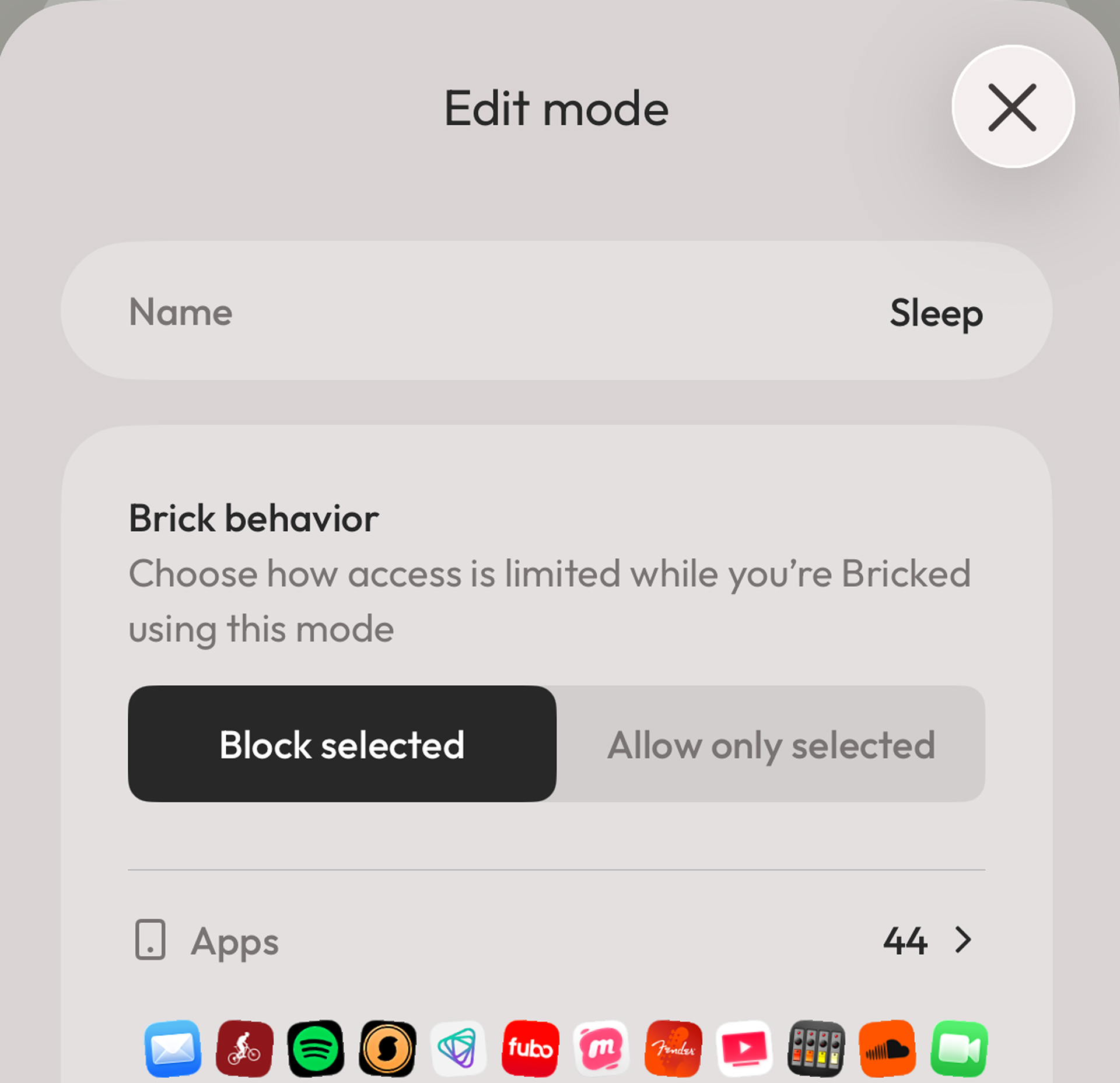
Setting up Brick was pretty easy. You have to download the accompanying app, then scan your phone over the actual physical Brick to sync things up.
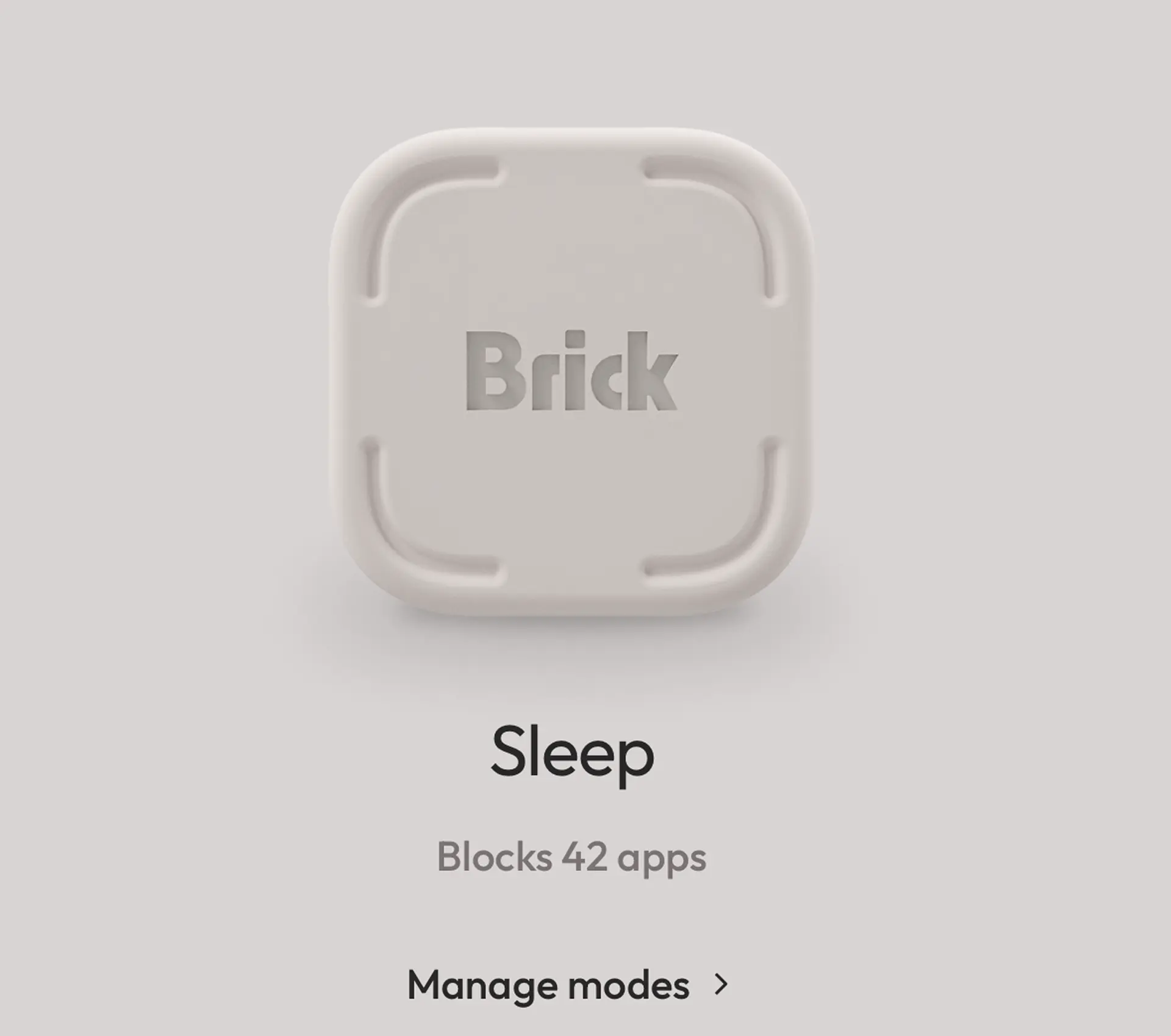
From there, you can set up various Brick modes for work, sleep, or whatever you want to reduce distractions for. You simply go into the app, start a “Mode,” and choose the up to 50 apps you want to block.
Brick doesn’t just allow you to block apps, but frequently visited websites too. Or, alternatively, you can just block your phone’s web browser entirely.
For the sleep mode on my Brick, I blocked all streaming, entertainment, and social media apps, and a couple websites I always go to, namely pitchfork.com and yahoo.com.
To use Brick, you have to physically scan your phone’s camera over the device to engage or unengage a Brick Mode.
The Brick itself is magnetic, so most people affix it a refrigerator, which is what I did. So, let’s say you have your phone with you inside your bedroom at night—in order to unlock Brick, you have to actually get up, go to the kitchen, and scan your phone over it.
This really does work to help reduce the impulse to quickly un-Brick your phone to check something on Instagram or whatever. The idea that you have to physically go somewhere to unlock your phone as opposed to quickly unlocking it in an app worked as intended, at least in my case.
The effectiveness of it for sleep also compelled me to start using it when I was working. Again, the physical exertion, however minimal, of having to get up and scan my phone over by the refrigerator to unlock it made me less inclined to do so.
This way of doing things also kind of shames you into not unlocking it. It feels a bit ridiculous to go through this rigamarole to unlock your phone just to indulge in your desire to watch some YouTube video, for example, so you find yourself less inclined to do so (or at least I did).
Of course, the true value of any productivity tool is how consistently you can stick with it.
They say any good habit takes 3 weeks to take hold, and that’s about how long it took for me to work Brick into my life. A month on, I’ve been able to stick with it, which is something I can’t say about some of the other smartphone reduction tools I’ve used in the past (more on those in a bit).
The good thing about Brick is that you can choose exactly which apps you want to block. So, if you want to make sure you still are able to receive phone calls and texts, just make sure those apps are unchecked when you’re setting up your Brick mode.
Brick is far from the only productivity tool I’ve used. Here are some I’ve tried in the past.
One of the OG smartphone productivity apps is Freedom.
It generally functions in the same way Brick does, without the physical component. You choose which apps you want to block in the app, then set a timer for how long you want to block them. And it works on a computer too.
I found that Freedom worked really well. What put me off, ultimately, was the subscription fee. That’s probably one of the reasons it never really took off in big way, and one of the pitfalls Brick is able to avoid, since there it doesn’t require any ongoing subscription payments.
Another old-school productivity app is Forest. It follows the same idea as Freedom, but gamifies the proceedings.
Every time you turn on Forest to block out distracting apps, it plants a bit of, well, forest for you on screen. It becomes fun to see how much forest you can plant over time.
The novelty of this concept wore out for me after a while, and I haven’t used it in years.
And now for a truly analog solution. Kitchen safe boxes were designed for would-be snackers to lock away their bad foods to prevent themselves from eating them for periods of time. The box has a timer on it, and once you set it, you can’t get in. Unless you have a drill on hand.
I heard a writer say that he used this as a distraction reduction tool while writing a book. So I decided to try for myself. At first I found it worked quite well. I was locking my phone away consistently and becoming more productive as a result.
However, the kitchen safe box solution is a bit of a nuclear option. Once your phone is in there, you really can’t get it out, so you’re out of luck if you get an important phone call or text. The anxiety I started feeling about this prevented me from using the box very consistently. Now it sits in some corner of a shelf in my kitchen, unused.
Brick is a pretty cool tool for reducing mindless smartphone usage. I think it’s a better solution than the alternatives I’ve mentioned above, particularly since it’s subscription-free.
That said, I’m admittedly still in the honeymoon phase with Brick, and there’s still the potential that it will end up sitting idly in some drawer in the future. For now, though, it earns my recommendation.
Yes, Brick is compatible with iPhones running iOS 16.2 or later and Android phones running Android 12 or later. It uses a companion app and a physical device to block distracting apps and websites.
No, Brick is a one-time purchase with no monthly subscription fees. Unlike some other screen time management apps, Brick lets you block distracting apps and websites without paying ongoing fees.
Yes, Brick allows you to choose which apps to block, so you can keep your phone and messaging apps accessible. This means you can reduce screen time and social media distractions while still receiving important calls and texts.











.png)